Overview

KGE is a visual editor for knowledge graphs. Where Tedi builds an ontoterminology from a formal conceptual system, and OTV and the RDF Graph Viewer let you inspect graphs you already have, KGE is where you draw one directly: place nodes on a canvas, connect them, and export the result as RDF.

Key features

  • Visual canvas for building and rearranging a graph by hand
  • Both classes and individuals, distinguished throughout
  • Typed attributes, with language tags on text values
  • Multilingual attribute support across nineteen languages
  • Filtering and search over nodes and relations
  • Import and export in RDF/XML and JSON

It runs entirely in the browser and needs a canvas-capable browser, which any current version is. Nothing is installed and nothing is stored on a server — your graph lives in the page until you export it.

Quick start

  1. Create your first node using the Add Node panel in the left sidebar. Type a name, choose Class or Individual, and press Enter.
  2. Add attributes: select the node and use the Attributes panel to give it properties.
  3. Create relationships by connecting nodes in the Add Relation panel.
  4. Arrange the graph by dragging nodes around the canvas.
  5. Save your work with the download button in the header. Nothing persists otherwise.

Export before you close the tab. The graph is held in the browser, not on a server. Closing without exporting loses it.

The interface

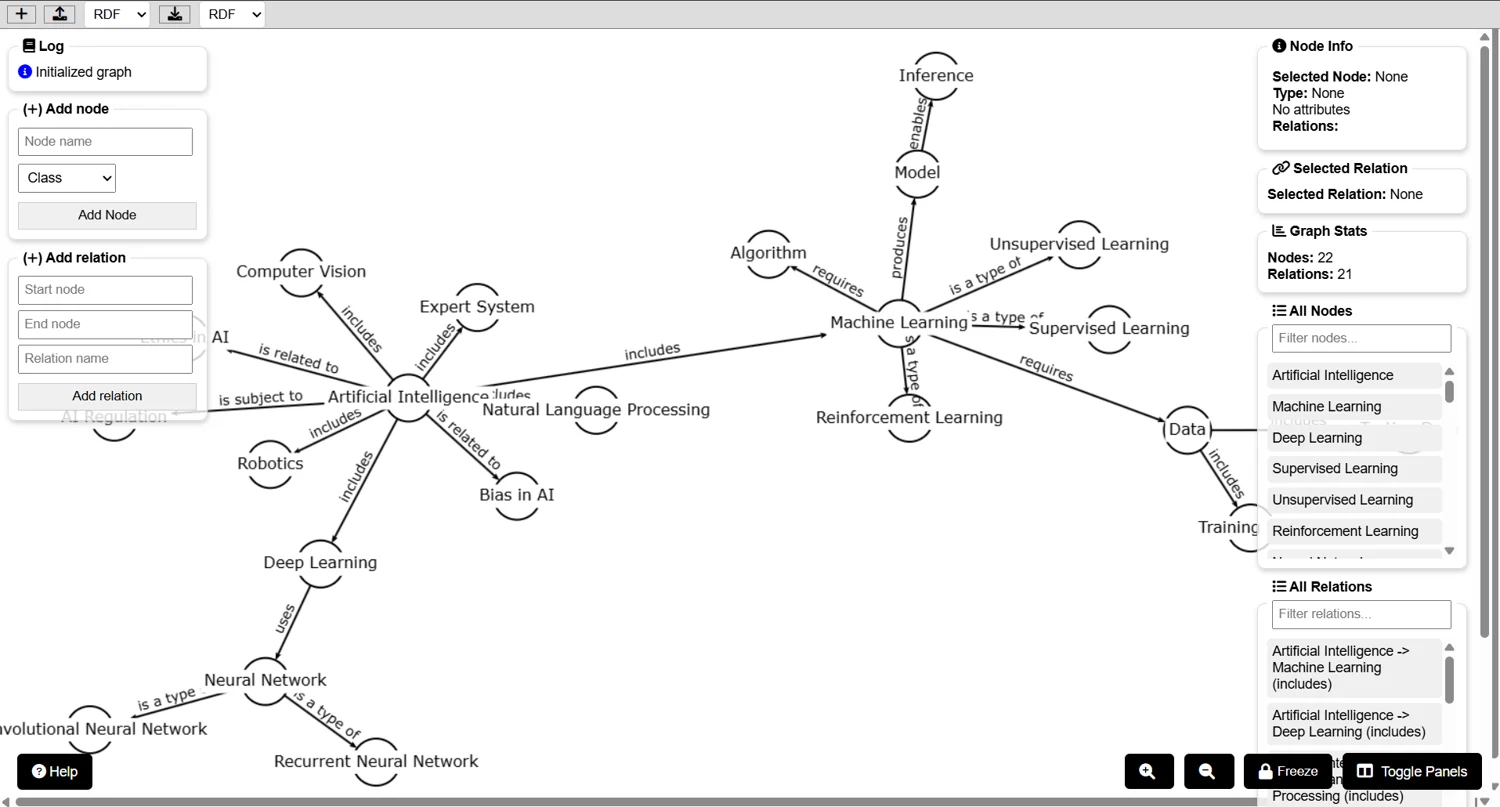
Three regions, with the canvas between two sidebars.

Left sidebarEvery creation and editing tool: add, edit and remove nodes; add, edit and remove relations; the attributes panel; and the log
CanvasThe workspace where the graph is drawn and rearranged
Right sidebarNode Info, Selected Relation, Graph Stats, and the filterable All Nodes and All Relations lists

Toggle Panels hides the sidebars when you want the full width for the canvas, and Freeze stops the layout moving while you work. Help reopens the built-in guide at any point.

The KGE home screen.
Figure 1. The home interface on first load.

Nodes

Every node is either a Class or an Individual. A class is an abstract concept; an individual is a specific instance of one. The distinction is the same one that separates owl:Class from a named individual in OWL, and it carries through to the RDF you export.

Creating

Enter a name in Add Node, pick the type, then click Add Node or press Enter.

Editing

  • Rename through the Edit Node panel.
  • Change type by toggling between Class and Individual in the same panel.
  • Move by dragging on the canvas. Position is presentational and does not affect the exported data.

Finding a node

Use the filter field in the All Nodes panel. Non-matching nodes turn semi-transparent on the canvas rather than disappearing, so you keep your bearings in a large graph.

Attributes

Attributes attach metadata to a node. Two types:

StringText, with an optional language tag
NumberNumeric values for quantitative data

String attributes can be tagged with any of nineteen languages: English, French, Spanish, German, Italian, Portuguese, Russian, Chinese (Simplified), Japanese, Arabic, Hindi, Greek, Turkish, Dutch, Swedish, Polish, Korean, Hebrew and Thai.

Relations

A relation joins a source node to a target node under a label, and is drawn as a directional arrow.

Creating

  • Specify the source and target nodes.
  • Give the relationship a descriptive label.

Editing and removing

Click a relation to select it, then change its label in the Edit Relation panel, or delete it from the Remove Relation panel.

Finding a relation

The filter in the All Relations panel searches by label or by the names of the nodes at either end.

Visualisation

  • Node colour is assigned automatically by type, so classes and individuals are distinguishable.
  • Zoom controls sit at the bottom right of the canvas.
  • Hovering a node highlights the relations connected to it.
  • Selected elements are highlighted consistently across the canvas and both sidebars, so a selection made in a list is visible on the graph and vice versa.

Graph Stats in the right sidebar keeps a running count of nodes and relations.

Import & export

RDFRDF/XML: the standard semantic web format, readable by any RDF tool
JSONKGE's own format, which preserves everything the editor knows including layout

Importing

  1. Click the upload button in the header.
  2. Select your file.
  3. Choose the format.
  4. The graph loads automatically.

Exporting

  1. Click the download button in the header.
  2. Enter a filename.
  3. Choose RDF or JSON.
  4. The file downloads.

Which format to use: export JSON if you intend to keep working in KGE, since it preserves KGE-specific features that RDF has no way to represent. Export RDF when the graph is going somewhere else: the SPARQL endpoint, the RDF Graph Viewer, or Protégé.

Troubleshooting

Canvas

“Your browser is not capable of displaying the canvas element”

The browser is too old, or canvas rendering is disabled. Update to a current version of Chrome, Firefox or Edge.

Browser
Lost work

My graph disappeared

Graphs are held in the browser and are not saved automatically. Export before closing or reloading the tab.

Not persisted
Import

A file will not load

Check the format selected at import matches the file: RDF/XML for RDF, and KGE's own JSON for JSON. Turtle and JSON-LD are not accepted.

Format

Licence & credits

Written by Prof. Christophe Roche, TALOS ERA Chair Holder, University of Crete, within the Horizon Europe project grant agreement 101087269.

Licence

Released under the PolyForm Noncommercial 1.0.0. You may use, modify and share it for any purpose that is not primarily intended for commercial advantage or monetary compensation: research, teaching and personal use all qualify. Copies and modified versions must carry the licence and the notices that came with them. The software is provided as is, without warranty.

PolyForm Noncommercial is a source-available licence rather than an open source one: the noncommercial restriction is not permitted under the Open Source Definition.

Citation

Roche, C. (2025). KGE (1.2).
TALOS AI4SSH Laboratory, University of Crete.
https://tools.talos-lab.eu/KGE/.